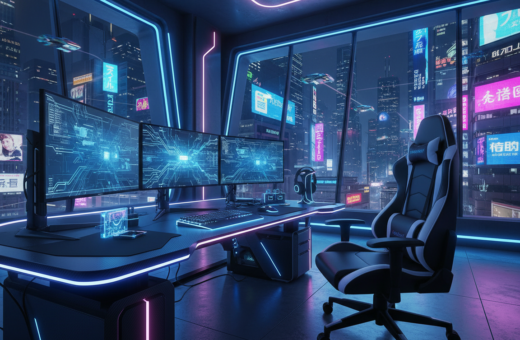
Many enthusiasts spend a lot of time designing their setup, yet they often miss how excessive RGB can create visual clutter. This piece outlines common pitfalls and how to avoid them.
Too many colors in one space can distract from play and turn a clean aesthetic into a chaotic display. Users often mix leds and strips without balancing intensity, which harms focus and the room’s overall look.
One frequent issue is failing to plan a cohesive palette. When lights clash, high-end hardware loses its polish. Careful rgb lighting choices help each color complement the room instead of overwhelming it.
In short: they should spend less time adding every available color and more time refining intensity and placement. Thanks to modern design cues, it is easy to curate a neat, professional environment that enhances performance.
Common Gaming RGB Mistakes That Clutter Your Setup
Uncoordinated light zones often create a busy, unfocused setup that hurts both style and function. Improperly managed components cause a common problem where lights pulse in odd hues or fail to sync across the case.
Simple fixes start with checking the motherboard and controller links, and limiting the number of LED strips or fans. Extra elements can strain the power rail and cause flicker or color shifts.
- Sync the motherboard and each device with the same software to avoid mismatched colors.
- Reduce LED count to improve airflow inside the case and stabilize voltage from the power supply.
- Swap or test a single controller when the whole scheme goes off, since one faulty unit can affect all lights.
- Choose a small palette of colors and consistent rgb lighting modes for a cleaner, more professional look.
Outcome: fewer elements, tighter software control, and correct power management solve most lighting problems and keep components running cooler.
Troubleshooting Hardware and Connection Issues
Physical checks solve many lighting problems quickly. Start with the basics: power, cable seating, and device condition. These steps often find the root cause faster than software tweaks.
Reseating Fan Connections
They should power down the computer and reseat fan and header cables on the motherboard. A loose cable can make one fan take down the whole chain.
Test each fan one at a time by disconnecting others. If one fan causes the issue, replace or swap it to verify the device is faulty.
Identifying Faulty LED Components
Check each controller and LED strip in isolation. The Razer Chroma Addressable controller includes 6x 5V 3-pin ARGB headers to help organize smaller setups.
The SRGBmods LED Controller v2 supports up to 41 devices and 4056 led, which can simplify diagnostics for big arrays.
Managing Voltage and Power Supply
Verify power connections and the case power rail. An unstable power source produces flicker and color shifts in lights.
They can also access the BIOS by pressing “Del” or “F2” during boot to check fan and header settings. If a yellow symbol appears in control software, it often means the controller needs extra configuration.
- First, ensure every cable is fully seated on the motherboard and controller.
- Test devices individually to find the single failing fan or strip.
- Confirm motherboard LED settings and update drivers or firmware if devices are not recognized.
For a step-by-step repair guide, refer to this related resource: rgb lighting troubleshooting. Thanks to these checks, most power or cable faults are found in a short time.
Optimizing Software and Controller Settings
Software conflicts and stale USB entries often stop lighting control from working as expected. Start by checking the lighting software and controller connections before changing hardware.
Quick fixes: use USBDeview from NirSoft to clear old USB records that can cause a persistent problem with your rgb controller. If the app still fails to detect a device, unplug the USB cable for 10 seconds and reconnect to force a driver refresh.
Windows 11 users can run built-in diagnostics by opening Settings → System → Troubleshoot → Other Troubleshooters. Running the hardware troubleshooter often finds issues where the computer does not recognize a controller or other components.
- Update the motherboard driver and firmware so software can map led ports and fans correctly.
- If a yellow symbol appears in the app, manually set the number of LEDs per port in controller settings.
- Keep all lighting apps and power settings updated to avoid sync errors across the case.
Conclusion
Well-managed lights make a setup feel intentional rather than chaotic. They should aim for a small palette and steady intensity so each component complements the room.
Proper management of lighting components keeps hardware stable and extends lifespan. Careful rgb lighting choices solve both visual and power issues while improving function.
By avoiding common gaming RGB mistakes, they get a balanced, professional look that boosts the overall experience. Thanks for following this guide; the steps here help optimize rgb, color, and lights without adding excess hardware.